|
|
||
|---|---|---|
| .tmp | ||
| fonts | ||
| images | ||
| input | ||
| output | ||
| .gitignore | ||
| body.py | ||
| book.py | ||
| colophon.py | ||
| cover.py | ||
| README.md | ||
| requirements.txt | ||
| zine_maker.py | ||

Introduction
This tutorial helps in navigating the zine_maker code, a small software tool derived from pyFPDF library. The code is written in Python, and provides a few scripts for creating covers, colophons, content, and also signatures for preparing a PDF for the printer. The scripts run with python version 3.x.x and we can feed to the scripts inputs and outputs. As an input, we give the path to a text file, which shall create the text and images content of the zine, and as an output we give a the path/filename of our choice. We can also run the scripts with no input nor output, in which case, they take as default parameters the readme text from the text/ folder and produce an output to either of the folders covers, colophons, body, or zines, depending on which script we are running each time.
Get the code
Download the source code
As of 2021-2022, the code is under active development by the author and can be cloned and/or downloaded from https://git.systerserver.net/mara/zine_maker. To download the project, near the top of the gitlab page, click on the download icon next to "Find file". You can choose which type of archived folder you want, and then open it in your filesystem, by right clicking the archived folder, or from the terminal:
tar -xvf zine_maker.tar -C /home/user/destination
unzip zinme_maker.zip -d /home/user/destination
OR use git clone:
git clone https://developer:glpat-38qN45wE_xLiNv1q4n5F@git.systerserver.net/mara/zine_maker.git
cd zine_maker
Requirements
Basic requirements are listed here.
- Terminal
- for MacOS and Linux, it comes together with the system, we can find the application by searching for terminal
- for Windows 10 and 11 follow the steps here (can you find a howto in Korean?)
- command line tool pdftk
- for MacOS we can download it from https://www.pdflabs.com/tools/pdftk-the-pdf-toolkit/pdftk_server-2.02-mac_osx-10.11-setup.pkg
- for Linux we can install with sudo apt install poppler-utils
- for windows we can download it from https://pdftk.en.softonic.com/?ex=RAMP-1768.1
- Python3 should be installed in the computer
Check by opening the terminal and run
python -i - And also the pip command if it didn't get installed with Python https://pip.pypa.io/en/stable/installation/
- On macOS, ImageMagick needs to be installed. If using MacPorts, then use the ImageMagic7 port and then change the path to include the bin subdirectory as per the MacPorts’ note.
- To use pdfunite on macOS, one can download Poppler (there is a port for it in MacPorts)
Once these are installed, from within zine_maker folder run:
pip install -r requirements.txt
Language
for non latin languages, you need to add language specific fonts in the fonts folder. At the moment there are Chinese and Korean fonts.
Images
For making use of images in the script image magick needs to be installed http://www.imagemagick.org/
Run the code!
Parameters
The python scripts cover.py, body.py and colophon.py take a text file as input, and a path for the output. If we give no input and not output, the default input comes from the files under the input folder and is saved in the output folder as cover.pdf, body.pdf and colophon.pdf respectively.
Make the zine in 3 steps
-
Generate a cover pdf from the root of the folder run:
python cover.py -
Generate the body (the content) pdf from the root of the folder run:
python body.py -
Generate the colophon (the back cover) pdf from the root of the folder run:
python colophon.py
The pdf documents are saved in the output folder.
To make your own zine modify the text files for the cover, for the body and for the colophon in the input folder.
Or provide your own files with the full pathname:
for example run:
python body.py <path>/<your-input-file>.txt <path>/<your-output-file>.pdf
Add images in the zine
You need to add in your input text file the path of your image.
For example if you add images in the image folder you can add them in the input/body.txt as /images/<image-filename>.jpg<img>. You can also give the full path of your system font. See the input/images.txt` as an example of how to add images in your content.
Final PDF
For merging the cover, body and colophon pdf files, there are many pdf merger tools. One that is command line based and is used in this tutorial is pdfunite http://linux-commands-examples.com/pdfunite
from the root directory run:
pdfunite input/cover.pdf input/body.pdf input/colophon.pdf output/final.pdf
You shall substitute the file paths to your own corresponding /path/filenames
See this readme as the generated pdf zine:
open the file output/zinemaker.pdf
For preparing the final pdf for printing you need the pdfseparate command http://www.linux-commands-examples.com/pdfseparate
Run from the root directory:
python book.py `output/final.pdf` `output/print_final.pdf`
Prepare pages for printing
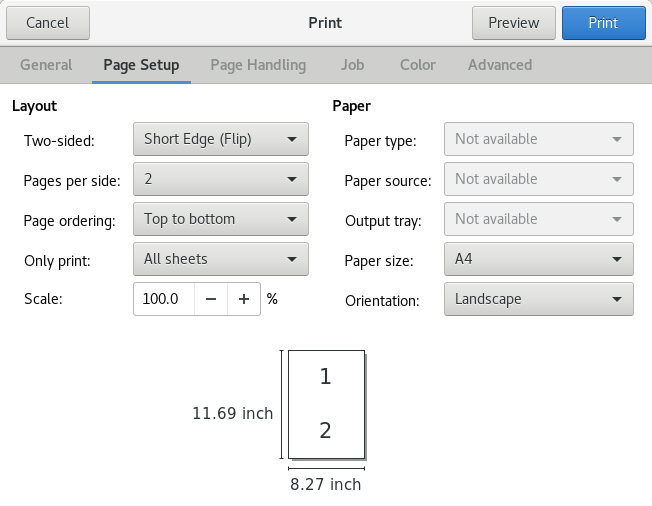
In the printer settings opt-in for the following settings:
- A4 Landscape
- Two pages per side
- Double side - short edge
Miscellaneous
Fonts
The source code comes with some fonts under the fonts folder. You can use your fonts of preference by adding them either in the fonts folder and edit the files cover.py, colophon.py and body.py to give the new names. Or add your absolute font path directly in the python scripts.
Text
The input texts should be clean from characters added by some text editors or
Operating Systems. Use the cat command to check your text is ready as input
with:
cat --show-nonprinting input.txt
Symbols such as M-oM-;M or ^M (carriage Return / line feed) need to be removed.
A cool tool for that is dos2unix, which is available as command line, but needs
to be installed:
dos2unix filename
Or with the sed command:
sed -e "s/\r//g" file > newfile
Extensive info can be find at: https://www.cyberciti.biz/faq/sed-remove-m-and-line-feeds-under-unix-linux-bsd-appleosx/
Layout
All the font styling happens in the zine_maker function create_pages(). The input text is parsed for specific tags or symbols in the begining of each line and changes to the font color and size happen accordingly. We can add more or edit existing rules, directly in the zine_maker code. To add new functions for text style visit the fpdf2 text documentation To add new functions for drawing shapes visit the fpdf2 drawing documentation